Skin Inspect Servers in CS2: How to Inspect CS2 (CS:GO) Skins

7
min
0
0
The excitement of getting a cool skin can turn into disappointment if it does not look the same in the game. This is why we are here to explore specialized skin inspection tools. Ever wondered why some traders never get disappointed after a big purchase? It’s because they always inspect first.
In this guide, you’ll learn how to use CS2 skin inspect servers to test weapons, knives, and gloves under real gameplay lighting. We will go through everything step by step from set up public inspect servers to understanding how proper inspection can save you time and money. Keep reading to find out how inspect servers help you pick the best-looking CS2 skins.
What Is a CS2 Skin Inspect Server?
A CS2 skin test server is a custom or community-made server that allows players to preview any cosmetic item in the game, even if they do not yet own it. You can instantly load any weapon finish, knife, glove, or sticker setup on your agent and see how it looks in real gameplay. Unlike viewing items in your inventory, inspecting servers shows skins under real map lighting with full animations.
Players often use a CS2 skin server for checking the float value, patterns, and overall visual effect of items before proceeding to buy CS2 (CS:GO) skins. These specific servers are created by active players, and they are beneficial for traders.
How CS2 Skin Inspect Servers Work
Using a CS2 skin inspect server is simpler than it might seem. These servers work by loading a special code, often called an inspect code or combo code, which tells the server exactly which weapon skin to display on your player model. This allows you to preview skins in full detail, including lighting, float, and wear levels.
Here’s how to use them step-by-step:
- Launch CS2 on your PC
Open the game normally. - Enable the developer console
Go to your game settings and turn on the console option. - Open the console
Press the tilde key (~) on your keyboard. - Connect to an inspect server
Typeconnect [server IP]in the console to join a public skin inspect server. - Get an inspect or combo code
Copy the inspect or combo code of the skin you want to preview from any inspect link generator or platform. - Enter the command in-game
Paste a command like!g [numbers]or!combo [code]into the chat.
Once you run the command, the server instantly loads that exact skin onto your player model. You can view the item with accurate lighting, real float value, pattern, wear level, and sticker placement—just as it would look if you owned it. After you try it once, the entire process takes less than a minute.
Benefits of Using Inspect Servers
You have several advantages by using CS2 skin inspect servers that help you make smarter trading and collecting decisions:
- Preview rare skins without owning them: You can test high-tier knives, gloves, and finishes before spending any money.
- Check float, wear, and pattern: Inspect the float value and seed carefully to know the real condition and rarity of the skin.
- See real in-game lighting and animations: You can clearly view how the skin changes with motion, lighting, and inspect animations.
- Capture screenshots or clips: Great for creating trading loadouts or social media content straight from in-game visuals.
- Compare before purchasing: You can compare and confirm that the skin looks good under gameplay conditions, rather than just static listing images.
How to Set Up a CS2 Skin Inspect Server
This is for advanced players who wish to build their own inspect server. It gives you full control over item spawns, lighting, and map setups, but it takes a bit more technical setup. The custom server installation includes:
- Download the CS2 player server files using SteamCMD
- Installing the CounterStrikeSharp framework, which is often found on platforms like GitHub
- Adding specific plugins, such as WeaponPaints, which manage the custom skin loading
An alternative approach is utilizing an offline CS2 inspect server through Practice Mode. You are able to enable cheats and use various console commands to gain control over the session. Essential console commands include: sv_cheats 1, mp_buy_anywhere 1, and sv_infinite_ammo 1.
How to Use Public CS2 Inspect Servers
If you want to view the cosmetics now, public skin inspect servers CS2 are your best choice. You can join these servers and test weapons instantly, although they often have other players testing items at the same time. The simple process is as follows:
- Launch the game and activate the console.
- Connect to a known server address, such as connect nuke.epidemic.gg, by pasting it into the console.
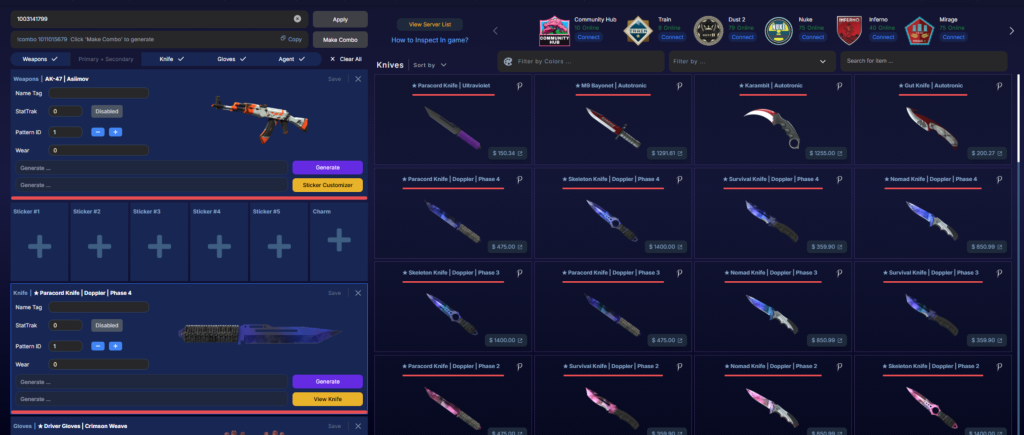
- Visit a CS2 skin inspect site to generate the necessary inspect or combo code for your item.
- Paste the combo code directly into the chat, for example: !combo 1003141799.
- The item should load and allow you to inspect CS2 skins instantly. This is a popular method to inspect skins in-game CS2.
Why You Should Inspect CS2 Skins
The importance of a thorough CS2 skin inspect cannot be overstated if you are looking to trade, sell CS2 (CS:GO) skins, or purchase high-value items. A skin’s appearance in the Steam Market preview is not always accurate to how it looks inside the game server. Factors like float value, pattern index, and the scratches can differ from listing images.
Using CS2 inspect servers lets you view the exact float, pattern index, and real lighting, which gives you a true read on both visuals and market value. This way, you avoid overpaying for bad patterns and make trades based on accurate, in-game data instead of static previews.
Key Features to Check When Inspecting a Skin
When you CS2 skin inspect online or in-game, always pay attention to the following details. They influence both its look and its price.
- Float value: Shows the skin’s exact wear level, from FN to BS. A float close to 0.01 or lower keeps the skin sharp in detail, with fewer scratches, so traders usually price it higher.
- Pattern index: Special patterns with rare seeds that align certain color zones or show full fades can raise both the look and price of a skin.
- StatTrak Counter Placement: On some skins, the StatTrak can block key pattern areas or sticker spots, which can affect the skin’s overall look.
- Sticker Condition and Position: Check that the stickers look fresh and fit the style or colors of your skin. A CS2 sticker simulator can help you visualize this.
- Knife or Glove Animations: Inspect CS2 skins by cycling through various movements to see how the lighting interacts with the texture, fades, and wear react during gameplay.
How to Inspect CS2 Skins In-Game
There is a basic way to manually inspect skins in-game CS2 for items you already own. This method is the simplest for inspecting a CS2 skin, but it is important to note that it differs from using a custom server. Specifically, it does not allow testing skins you do not own, and the lighting stays fixed instead of changing. Here’s how you can manually check a skin step by step:
- Open your CS2 inventory.
- Right-click on the desired skin you own.
- Click the “Inspect” option.
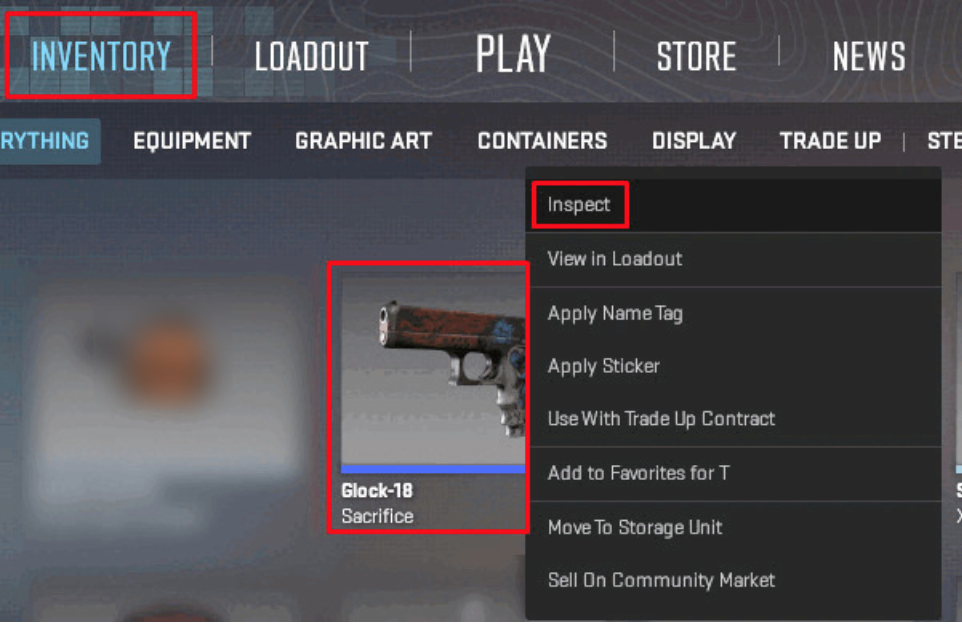
This action opens a custom view screen which offers three key viewing modes: air, in-hand, and third-person. You can benefit from each of these:
- The air view allows you to rotate the item freely to observe its wear and pattern from every angle.
- The in-hand view simulates how the weapon looks from the player’s first-person perspective.
- The third-person view provides a perspective on how the skin appears on your character model.
If you’re viewing a listing on the Steam Market, you can click “Inspect in Game” to load that exact skin in CS2 with its real float and pattern. It works, but it’s slower, has an older interface, and you don’t get advanced filters (float ranges, sticker previews, etc.). For a more thorough review, use an inspect server after this quick preview.
How to Inspect CS2 Skins on the Steam Market
You can also CS2 skin inspect online directly through the official Steam Market. It’s simple and built into the platform:
Find the skin you’re interested in on the Steam Market.
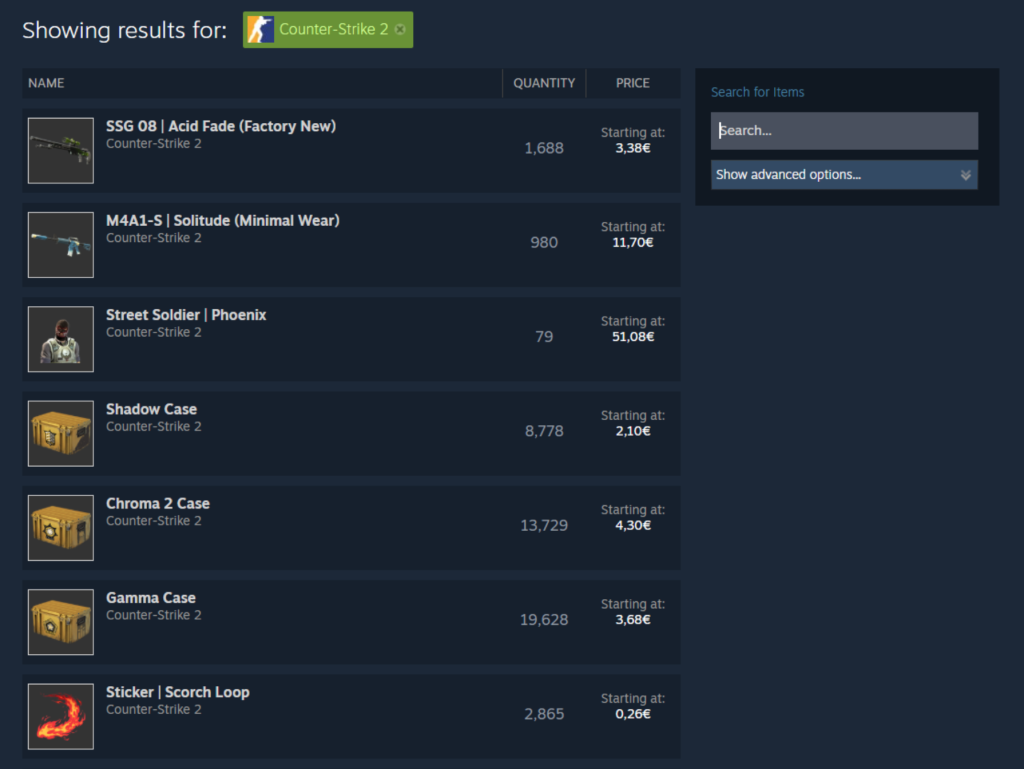
Click the “Inspect in Game” button next to the listing.
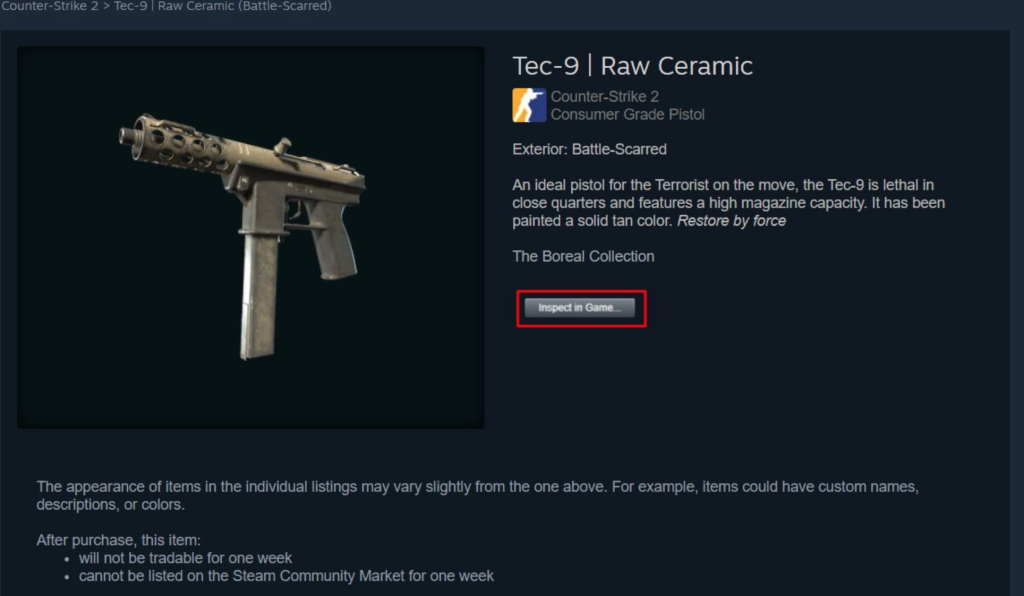
Steam will automatically launch CS2 and load a quick preview of that exact skin with its float, pattern, and wear level.
While this way is quick and handy, it has some drawbacks. The interface is outdated, and there are no advanced filters for sorting by float, pattern, or stickers. You can only inspect items currently listed for sale, not skins that are already sold or traded. It’s a helpful way to check an item fast, but for more accurate lighting and full animation previews, inspect servers or 3D viewer sites are far better options.
Inspect Servers vs 3D Viewer Websites
When checking cosmetics, you’ll mostly use two options to CS2 skin inspect online: inspect servers and 3D viewer sites. Here’s where they’re not quite the same:
| Method | Advantages | Disadvantages |
|---|---|---|
| Inspect Servers | Offers realistic in-game lighting and full animations. Allows you to test sticker placement with a skin viewer CS2. | Require launching and joining a CS2 inspect server, which can sometimes be crowded or slow to load. |
| 3D Viewer Sites | Faster because they are browser-based. This makes it easier for rapid price comparison and checking various finishes. | The lighting is simulated, so it might not look exactly like it does in-game. |
Common Problems When Inspecting Skins in CS2
If you face an issue when trying to complete a CS2 skin inspect, here is a quick troubleshooting guide:
- The “Inspect in Game” option is unavailable → Make sure your developer console is enabled in the game settings.
- You receive an invalid combo code error → Return to the inspection site and generate a completely new code.
- The workshop map will not properly load → Close the game and reverify your local game files through Steam.
- The server is full → Try connecting to a different IP address on another host.
- Plugin errors → If you run your own server, you should reinstall all of the requirements and workshop assets.
Conclusion
All in all, we have thoroughly explored how you can confidently skin inspect servers CS2. You’ve seen how inspect servers and browser tools help you preview float, pattern, lighting, and animations in a way that reflects real gameplay. These options give you a safe, accurate view of how a skin will look and feel, so your choices rely on facts instead of guesswork.
Before you commit to a trade or a purchase, test items in an inspect server, compare variants in a web viewer, and note what you prefer under match lighting. Use these checks each time, protect your budget, and pick skins you’ll actually enjoy in play.
FAQ
Why can’t I inspect skins in-game in CS2?
The most common reason is that the item was removed from the Steam Market, or you haven’t turned on the developer console yet, which you need for some CS2 skin inspect commands to work. Try restarting the game and checking your settings.
How to inspect workshop skins in CS2?
You can try a CS2 craft maker or use workshop maps made for testing unreleased skins. These maps require you to subscribe to them via the Steam Workshop and load them through the game.
How to inspect CS2 skins in-game?
If you own the item, simply open your inventory, right-click the skin, and choose the "Inspect" option. For items you do not own, you must connect to a custom CS2 skin test server.
How to inspect CS2 skins on the Steam Market?
You can view certain listings by clicking the "Inspect in Game" button found on the item's listing page. This method is a slower form of CS2 skin inspection online that loads the item in a basic viewer server.
What should I look for when inspecting a skin?
You need to check the exact CS2 (CS:GO) float value, the specific pattern index, and how the texture appears under different light setups. Pay attention to any scratches or fade percentages that might not be visible in basic previews.
Can I Inspect Skins in CS2 before buying them?
Absolutely. The primary purpose of a CS2 inspect server is to let you preview items before you decide to trade or buy them.
Are CS2 inspect servers safe?
The many reputable CS2 inspection servers are considered safe to use for viewing purposes. Always be cautious of any server that asks you to input your personal Steam credentials or financial information.
Can I check float values and patterns on the inspect servers?
Yes, specialized commands on skin inspect servers CS2 often allow you to view the exact CS2 (CS:GO) float value and the pattern index of the item you have spawned. This is important for accurate pricing.
Do inspect servers cost money to use?
No, virtually all CS2 skin server and CS2 skin inspect online tools are free to use. Their costs are usually covered by donations or advertising.
Can I try knives and gloves on inspect servers?
Yes, you can absolutely spawn and test any knife or glove item, like rare finishes and high-tier variants. You can test the specific animation sets for each item.
What’s the difference between inspect servers and 3D viewers?
Inspect the skin through the actual CS2 engine to see its proper lighting, shading, and wear. On the other hand, 3D viewers or inspect sites simulate it in a browser, which is handy but does not fully match in-game visuals or reflect real float lighting.

Subscribe
0 Comments