artartartart

$ 20000 EventPrize Pool

timer
Starts in
00:00:00:00
Anniversary event
Starting soon

What Is a Steam Trade URL?

On the most basic level, the Steam trade URL, also called the Steam trade link, is a link that allows you to send trade offers to other players without needing to be friends on Steam. Using a Steam trade URL actually has several benefits.

01check icon

It’s convenient. Your Steam trade link allows you to receive or offer trades to complete strangers without needing to be connected through Steam itself

02check icon

It’s much safer. You’ll be able to trade without sharing your Steam profile

03check icon

It’s used in automation. You can set up trading bots to make trades for you on certain marketplaces

How to Find Your Steam Trade URL?

To find Steam trade URLs is actually pretty easy. But, it’s only easy after doing it, well, a lot. Our Steam trade link finder makes it possible with just a single click. However, if you like to click several times, here are several different ways to do it.

Steam Client (Desktop PC)

To find the Steam trade URL on your desktop, just follow these simple steps:

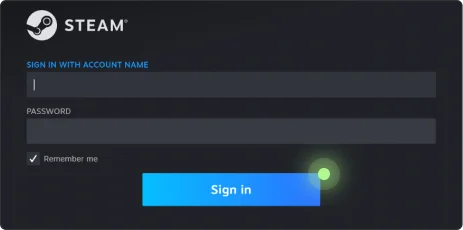
Step 1

Log into your Steam account

Log into your Steam account
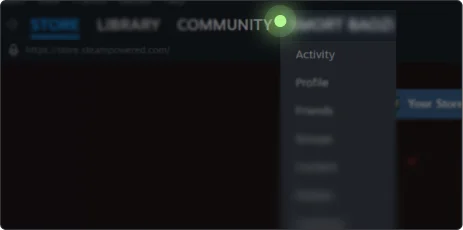
Step 2

Hover over your profile name on the top menu near “Community”

Hover over your profile name on the top menu near “Community”
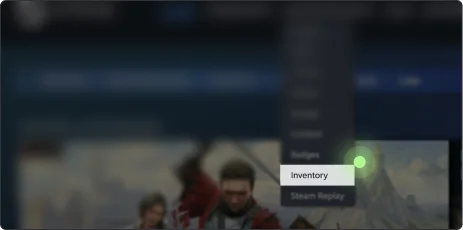
Step 3

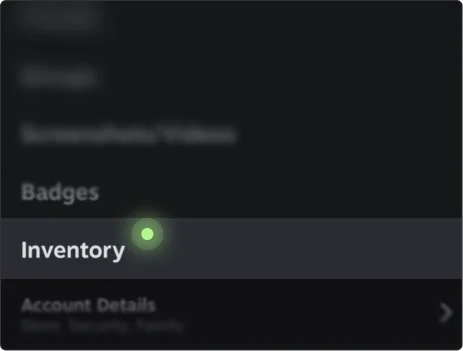
Click “Inventory”

Click “Inventory”
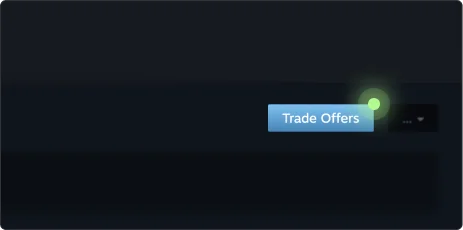
Step 4

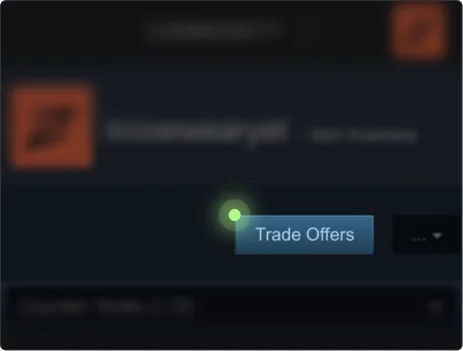
Then click “Trade Offers”

Then click “Trade Offers”
Step 5

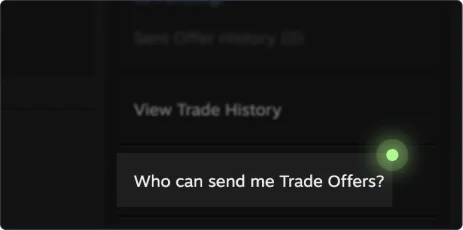
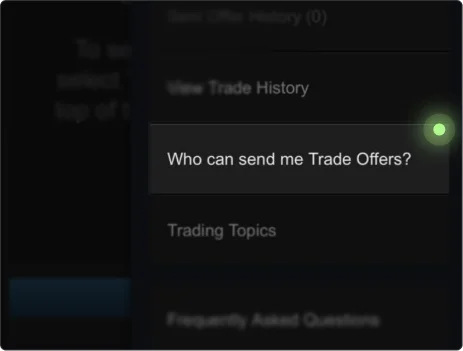
Scroll down and click on “Who can send me Trade Offers?”

Scroll down and click on “Who can send me Trade Offers?”
Step 6

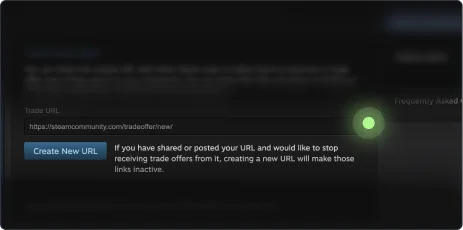
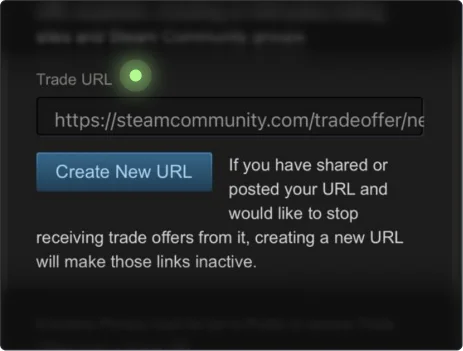
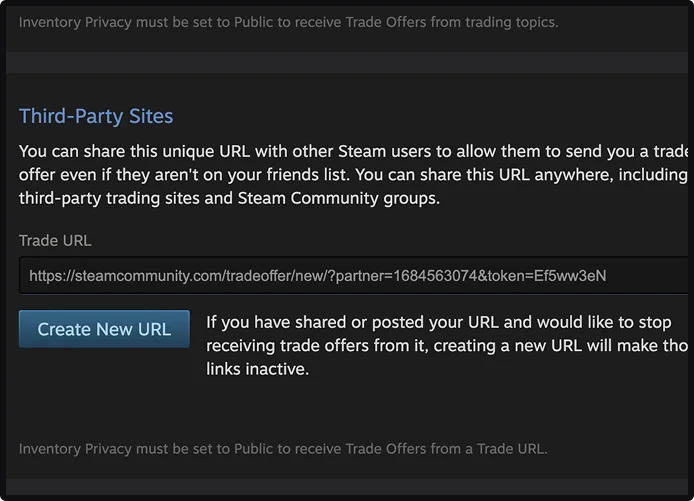
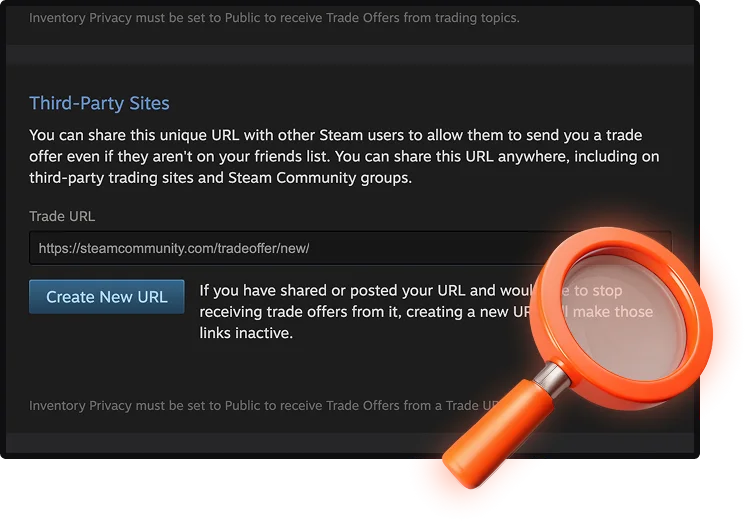
Under “Third-Party Sites”, you’ll find trade URL Steam

Under “Third-Party Sites”, you’ll find trade URL Steam
steam trade url finder

Finding your trade URL Steam via Skin Place is easier and faster. All you have to do is visit Skin Place and:

1

Connect your Steam account

2

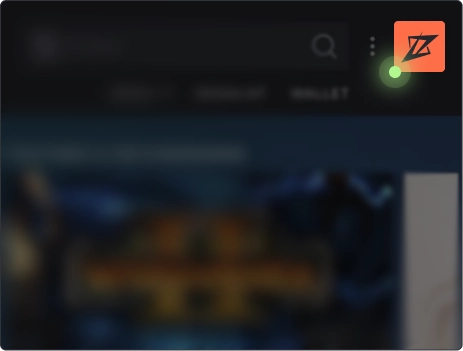
Click on your avatar in the upper right-hand corner

3

Click on your profile

4

In the profile settings, just click “Where to find it”

Steam Mobile App (Smartphone)

To find your Steam trade URL on the client's mobile app, just follow these steps:

Step 1

Open the Steam app on your phone

Open the Steam app on your phone
Step 2

Tap on your profile avatar and then “Inventory”

Tap on your profile avatar and then “Inventory”
Step 3

Tap on “Trade Offers”

Tap on “Trade Offers”
Step 4

Tap on the three-bar menu on the upper right-hand side

Tap on the three-bar menu on the upper right-hand side
Step 5

Tap “Who can send me trade offers”

Tap “Who can send me trade offers”
Step 6

Scroll down and you’ll see your Steam trade URL

Scroll down and you’ll see your Steam trade URL

How to Enable Steam Trade Requests?

how to enable steam trade requests

To enable Steam trade requests, just follow these simple steps:

1

Log into your Steam account

2

Hover over your profile name on the top menu near “Community”

3

Click “Inventory”, then click “Trade Offers”

4

Scroll down and click on “Who can send me Trade Offers”

5

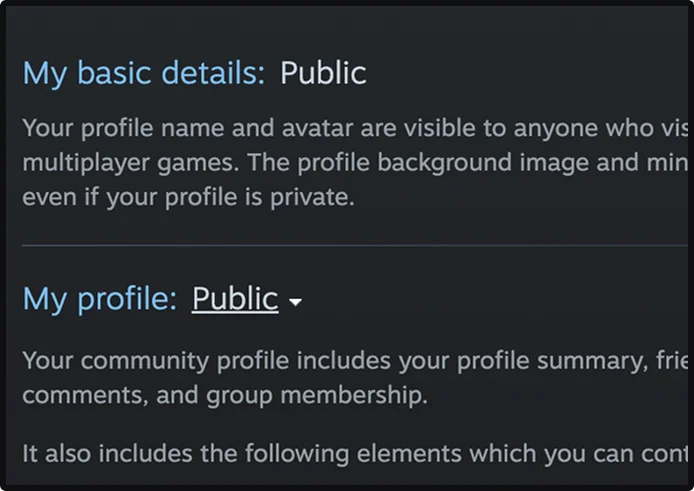
Set to “friends” or “public” profile to receive trade requests

6

Test your trade URL Steam by entering it into your profile at SkinPlace

steam trade link finder work

How to Change Your Steam Trade URL?

You can easily change and get a Steam trade URL. However, if you update your trade URL, you’ll have to update it on any third-party site where you currently have the previous URL

Here’s how to change your Steam URL:

1

Log into your Steam account

2

Hover over your profile name on the top menu near “Community”

3

Click “Inventory” , then click “Trade Offers”

4

Scroll down and click on “Who can send me Trade Offers”

5

Under “Third-Party Sites”, you’ll find the Steam trade URL

6

Click the “Create new URL” button

how to change steam trade url
why do you need a steam trade url
01

Only post your URL on reputable sites

02

Enable Steam Guard for added security

03

Double-check trade offers before you accept them

04

Update your Trade URL from time to time to avoid phishing attempts

how to fix issues with steam trade urls not working
1

As we’ve discussed, your privacy settings need to be set to friends only or public. To fix this issue, just follow the steps we mentioned above

2

Steam has a lot of restrictions like trade holds, and VAC bans, and can often limit your account status. The fix really depends on the type of issue

3

Old URLs. You can fix this by making sure you’ve entered the newest URL found in your Steam account

use our tool to find your steam trade url now