CS2 Trade Reversal: How to Undo Steam Trades?

8
min
0
0
CS2 trading on Steam is more than just cosmetics. For many years, weapon skins, cases, and stickers became liquid assets. It’s an investment, and with high-value items comes the risk of scams or accidental clicks. To prevent players’ treasures from being stolen, Valve introduced Steam Trade Protection in July, 2025. While several months have passed, many users still don’t know the details of this feature, not its limits and regulations. As a result, a feature intended to make trading safer resulted in a 30-day trade and market ban. But what does it mean? Follow our material to explore all the details of safe trading on Steam.
What Is CS2 Trade Reversal?
A CS2 Trade Reversal is the process of voiding a completed transaction on the Steam platform to return items to their original owners. In practice, reversing a trade means that Valve’s system intervenes to move items back into a user’s inventory, effectively resetting the trade as if it never happened. It’s not like a standard trade-back between friends, but rather a technical override of the finality of the Steam Market.
In CS, a Trade Reversal is a helpful option for three common scenarios. First, for accidental clicks, when a player mistakenly includes an item in a gift trade. Second, for scams, such as API scams or phishing links that hijacked a trade mid-process. Lastly, unauthorized account access resulted in a compromised account being drained of its inventory.
Overall, using a reverse trade is an emergency measure rather than a standard “undo” button for buyer’s remorse.
Difference Between Canceling and Reversing a Trade
Cancelling and reversing a trade are two non-identical actions. Understanding the difference between them can help any trader, since the measures occur at different points in the trade.
That said, canceling a trade applies to pending or unaccepted offers. In other words, if you realize you made a mistake while sending an offer, and the other user hasn’t accepted the offer, you can cancel it. Players can do it through the “Sent Offers” page. By canceling a trade, you won’t incur any penalties, and you don’t need system intervention. In the end, the items never leave your inventory.
Reversing a trade is rather a last option before it’s too late. This action applies after a trade is completed and is highly limited. First, you can use it if Steam Trade Protection still covers the items. There is a 7-day window if your account was compromised or if you made a mistake during the trade. The second difference is that reversing a trade triggers a mandatory 30-day trade and market ban to prevent system abuse. Lastly, you cannot control which trade will be reversed, as it covers all trades over the last 7 days.
These two actions are often confused by CS2 traders because both stop a trade. At the same time, while canceling is more routine, reversing a trade is rather an emergency measure with consequences for the initiator’s account.
Looking for a trustworthy platform to buy CS2 (CS:GO) skins? Follow our link and find the best prices for eye-catching skins you want to add to the inventory!
How to Reverse CS2 Trades
Now, let’s see how to reverse a trade on Steam. While the process is simple, it’s better to have detailed instructions so you won’t miss anything. The reason is that CS2 Trade Reversal is an essential tool designed to enhance safety in trading between users. Even a small detail can change everything and make the process tough.
Confirm You Are Eligible
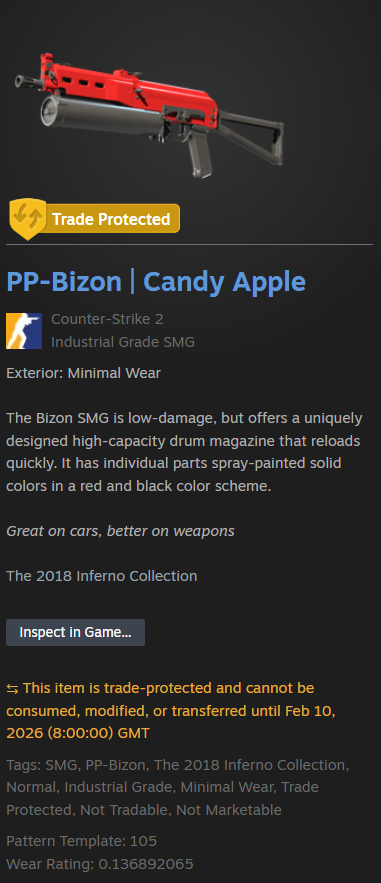
The most essential part of CS2 Trade Reversal is that you are eligible to use the feature. For example, reversing a trade applies only to CS2 items. Also, they should be a part of a trade executed within the last 7 days. To make it easier to understand, Valve marked them with a yellow “Trade Protected” shield in the inventory, as in the picture. No less important is that you have access to and control of the Steam account in the case it is compromised.
Go to Your Trade History
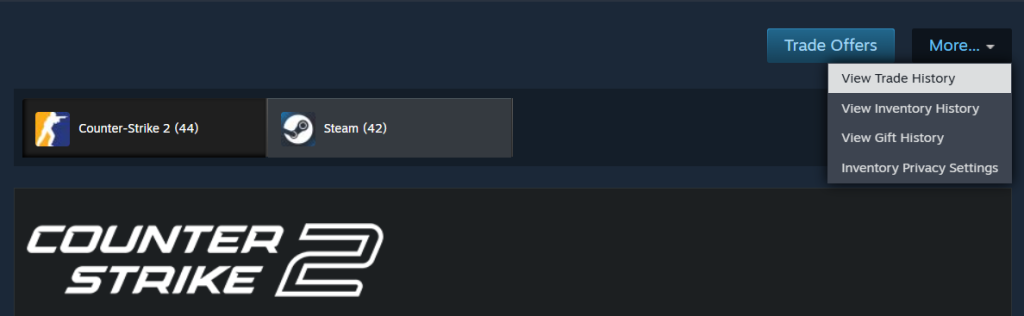
The next step is to open your profile, then open the Inventory. Here, you can find a “Trade Offers” button, but we need another one — “More…” This one hides the “View Trade History” option, which is essential to our process for reversing a trade. Here, you will see your total trade history along with the items that are trade-protected at the moment. Each of these items shows an actual final date of trade protection.
Click “Reverse Trade”
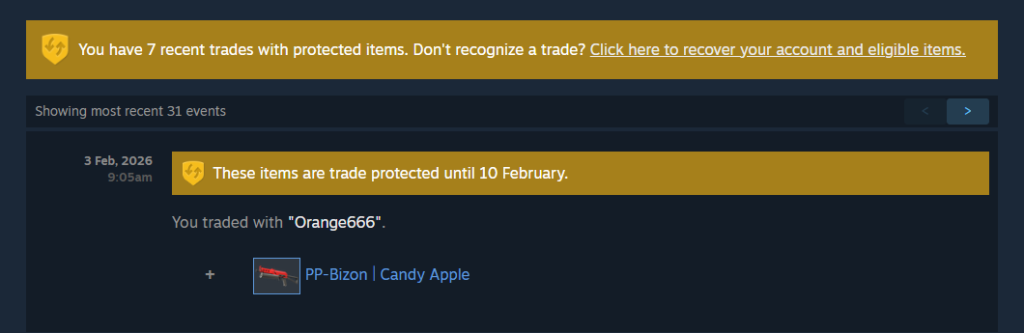
If you are eligible to reverse a trade, there is a special button designed to begin the process. As we mentioned before, users cannot choose exactly which trade will be reversed and which won’t. Still, you can see which of them will be affected by the process.
In the case of active trading, you may think the only option is to wait until the number of affected trades is minimized to reverse a specific trade you need (e.g., when the price of skin suddenly increases). It’s better to remember that CS Trade Reversal isn’t designed for fun. By abusing the system, your account may be flagged and reviewed.
The other reason is that your account was compromised. The sooner you change a password and regain control of the account, the better.
Accept the Terms
After you click “Reverse Trade,” the system will warn you about a 30-day cooldown. During this period, you cannot trade items or buy and sell items on the Steam Community Market. Confirm Steam’s conditions if you accept them, and the items will instantly return to their original owners.
Wait for the Cooldown
Now, after submitting a CS Trade Reversal, the items that were Trade Protected are returned to their original owners. You have a 30-day cooldown period. In other words, during the next thirty days, you cannot trade with other users, no matter how long you have been friends with them. Also, you cannot use the Steam Community Market. Items listed for sale automatically return to the Inventory. Lastly, players must again log in to their Steam account and change the password.
Overall, even after a CS Trade Reversal, players still can play CS2 and use the items they already owned before the procedure.
What CS2 Trades You Cannot Undo
As you can see, CS2 Trade Reversal is a valuable tool that can save your items. At the same time, it’s crucial to understand that sometimes you cannot undo some trades. Moreover, it can belong to CS2 and non-CS2 items. Let’s dive into the details to avoid any misunderstandings.
With Skin.Place you can easily sell CS2 (CS:GO) skins for real money. Moreover, the withdrawal options include a variety of variants, including cryptocurrencies, Visa, and PayPal. Just choose the best option that suits you and get a payout instantly!
More Than 8 Days Have Passed
The most crucial detail is that the Steam trade hold applies to each trade for only 7 days. In other words, as soon as an item isn’t “Trade Protected,” you cannot reverse a trade. Per Valve’s policy, you agree to new ownership and have no objections.
The Trade Involves Games or Items Outside CS2
Currently, Steam Trade Protection works only with CS2 items. It means that if players trade with games or items outside CS, a Trade Reversal is impossible. Also, to prevent any attempt to cheat the system, players cannot combine CS2 items with non-CS2 items, such as TF2 keys or Dota 2 items. All items in a trade must have the same level of protection.
You Already Used the Reversal Option Once
As we mentioned, players can reverse a trade only once at a time, with a 30-day trade and market ban. CS2 Trade Reversal is designed for real issues, not for fun and a change of mind. Such a restriction prevents abuse of the system. Moreover, if players reverse a trade too often, they risk getting a more severe restriction or even an account review.
Why the 30-Day Trade Cooldown Exists
Of course, with such a long cooldown period for using a CS2 Trade Reversal, there is a simple question about timing and the need for it. In truth, it’s not a restriction, but rather a time for a full recovery. At the same time, Valve prevents abuse of the system in this way, covering all possible scenarios at once. For a better understanding, let’s explore it in more detail.
Security
As we mentioned, CS Trade Reversal acts as a safety net for compromised accounts. Since you reverse a trade, you also need to change your password and log in again. A 30-day trade and market ban gives players enough time to recover after scams or hacks and to prevent future attempts to steal their goods. You can also use this time to find the cause of the problem and avoid repeating the same mistake.
Deterrent
For many years, the CS2 market worked on the principle that once a trade is confirmed, ownership of items is permanent. Even in cases of scams, players spend days and weeks proving they are the victims.
Now, with a CS Trade Reversal feature, there is a chance to abuse the system. In fact, Valve can track if your account was actually compromised. In other words, if you reverse a trade while your login IP, hardware ID, and 2FA haven’t changed, Valve sees that you had full control of the account. As a result, “fake” reversing a trade could be treated as a form of scamming.
Account Recovery
Lastly, a 30-day trade cooldown provides enough time to secure the account fully. It also encourages password changes. No less essential is enabling Steam Guard Authenticator, the final step to verify the details of each trade.
Tips to Trade Smarter and Avoid Needing a Reversal
To avoid the need for CS2 Trade Reversal, it’s essential to maintain high account security. Also, it’s better to spend an extra ten seconds to verify a trade than quickly confirm and lose everything you have.
Continuing the first tip, remember to double-check all trade details before accepting. Scammers often make profiles to look like famous bots. Still, it doesn’t mean a Level 1 profile is 100% a scam. At the same time, it’s better to check the profile name and the details of a trade.
Another tip for trading smarter is always to use Steam Guard Mobile Authenticator. Thanks to this feature, you always have a final stopgap to see exactly which items are leaving your account.
Also, it could be helpful to avoid suspicious links and fake bots. A link sent on an external platform to make logging in to a trading website easier could be a trap. Especially if signing in via Steam requires re-entering the password.
If you’re dealing with expensive items, make sure you understand how trade locked cases work, since some cases may not be tradable immediately and can affect how quickly you can move items between accounts.
Lastly, review active API keys on the Steam platform regularly. If you see a key registered that you didn’t create, your account is compromised. Revoke it immediately and change your password.
Conclusion
Now, you know how to reverse a trade on Steam and the details of the feature. And, as you can see, it’s not a tool for fun, but a powerful and costly emergency safety net. With the Steam Trade Protection, players have a 7-day window to undo unauthorized or accidental transactions and prevent item loss. At the same time, it’s better to remember about a 30-day trade and market ban, which will automatically trigger after reversing a trade.
Overall, while you still have a backup plan, the best defense is in your own hands. It includes double-checking the trade offer and using a Steam Guard. It is always better not to become a victim than to bring back the control of the account, changing passwords, and recovering after a scam, right?
FAQ
How to Reverse a Trade on Steam?
Players must open their Steam Item Inventory, click “More”, and then “View Trade History”. You can see there a special button, which begins a recovery of the account and eligible items. This action reverses all trades from the last 7 days (the items with a yellow shield icon). As a result, the items will be returned to the original owners, and your account will get a 30-day trade/market ban.
Can Steam Reverse a CS2 Trade?
All CS2 trades within a 7-day window can be reversed if the items are marked as “Trade Protected” (a yellow shield icon). This feature protects hacked and phished accounts by adding a 30-day trade and market ban on the initiator’s account.
Is CS2 Trade Reversal Guaranteed?
All CS2 trades for the last seven days marked as “Trade Protected” are guaranteed to reverse. In other words, the trades that were finished more than a week ago can’t be reversed.
How Long Does a Trade Reversal Review Take?
As soon as you click to recover your account and eligible items, the process reverses all trades almost instantly. Still, while the item return is immediate, you will get a 30-day trade and market cooldown as a side effect that initiated the reversal.
Why Can You Assign Only One Trade Reversal at a Time?
Steam limits users to prevent any scam or attempt to destabilize the market. The main goal is to take responsibility for mistakes or security incidents. With a 30-day trade/market ban, it’s instead a severe measure designed to be used sparingly.
What Gets Returned When You Reverse Trades?
Reversing CS2 trades instantly returns all items, such as skins and cases, from trades made in the last 7 days to their original owners. It’s essential to note that this action reverses not just one, but all protected trades.

Subscribe
0 Comments