How to Enable Steam Community In-Game: Complete Guide
6
min
0
0
You click a case, key, or item in CS2, but Steam blocks the next step and asks you to turn on its in-game panel. The message can feel confusing because Steam uses a different name for the same feature inside the client. The fix usually takes less than a minute. Want to get back to your case or market page fast? This guide shows the main setting first, then covers the CS2-specific setup, common fixes, Steam Deck use, trade rules, and other ways to handle skins if the overlay still causes trouble.
What “Steam Community In-Game” Actually Means?
“Steam Community In-Game” is the Steam Overlay. The panel opens over CS2 when you press Shift + Tab by default. Valve explains that the overlay gives you access to Steam features while you play, and games can also use it for purchases and other Steam functions.
The wording causes confusion because CS2 can ask you to enable Steam Community In-Game, while the option in Steam settings is named “Enable the Steam Overlay while in-game.” Both names point to the same feature.
Once active, the panel gives you access to friends, chat, guides, a browser, screenshots, and Steam purchase pages. The Steam Community overlay can also support game features that need Steam in the background. So, if you see the CS2 prompt, you usually need to turn on the overlay rather than change a gameplay option.
When CS2 Asks You to Enable Steam Community In-Game?
You usually see this prompt when CS2 needs a Steam window over the game. A case, key, or store item can trigger it. The same can happen when you open a Steam Market page from your inventory, view a player profile, or move to a Steam trade page from CS2.
The reason is simple. Steam uses its overlay for in-game purchase flows, so a disabled panel can stop the related Steam window from opening. Games with item purchases or other in-game transactions may require the Steam overlay to work properly.
If CS2 asks you to enable Steam Community in game, check the Steam client first. You do not need to change your graphics, network, or inventory setup for this specific prompt. After the panel works, retry the action that triggered the message.
CS2 itself can still run when the overlay is off. The problem appears when the game needs a Steam page that normally opens over your session.
How to Enable the Steam Overlay for CS2?
Here is how to enable the Steam Community in game CS2 in three quick steps. You need both the main Steam setting and the CS2-specific option active before you test the shortcut.
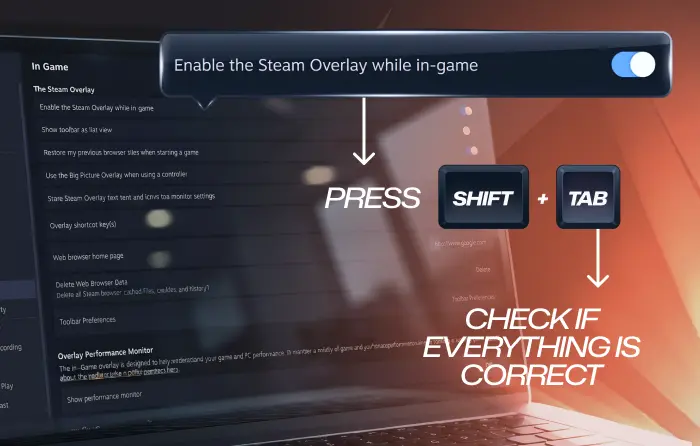
Step 1: Turn It On in Steam’s Global Settings
- Open the Steam client
- Click Steam in the top-left corner and choose Settings
- Open In-Game
- Turn on Enable the Steam Overlay while in-game
- Check the overlay shortcut. Shift + Tab is the default
Valve lists the same path in its current support guide: Steam > Settings > In Game, followed by the overlay switch.
If your goal is to enable Steam Community in-game across Steam titles, this global switch is the first place to check. You can also change the shortcut if Shift + Tab conflicts with another key bind.
Step 2: Turn It On for Counter-Strike 2
- Open your Library
- Right-click Counter-Strike 2 and choose Properties
- Stay on the General tab
- Turn on Enable the Steam Overlay while in-game
Steam also provides a separate overlay switch for individual games. If the CS2 option is off, the overlay can fail in CS2 even after you activate the main Steam setting.
If you search how to enable Steam Community in game, this second option is easy to miss. Check both switches before you restart.
Step 3: Restart and Test
Close CS2, then exit Steam fully from the system tray. Open Steam again, start CS2 from your Library, and press Shift + Tab from the main menu.
If the panel appears, you have completed the steps to enable Steam Community in game CS2. Retry the case, key, Market, or item action that caused the first message. If the panel does not appear, move to the fixes below.
Steam Overlay Still Not Working? Try These Fixes
If you followed the steps above and still cannot enable Steam Community in-game, one of these causes usually explains the problem.
| Problem | Likely cause | Fix |
| Shift + Tab does nothing | The shortcut changed or conflicts with another bind | Check Steam > Settings > In Game and set another overlay shortcut |
| Overlay never loads | CS2 did not start through the Steam client | Close CS2 and launch it directly from your Steam Library |
| Overlay flickers or closes | Another overlay hooks the game (Discord, NVIDIA, MSI Afterburner/RivaTuner) | Close other overlays one at a time, then test CS2 again |
| It works in other games, not CS2 | The CS2-specific switch is off or game files have a problem | Recheck CS2 Properties, then verify installed files |
| Purchase page stays blank | Steam needs an update or has a temporary client problem | Update and restart Steam, then retry the purchase page |
| Overlay stays blocked | Steam and CS2 use different permission levels, or security software blocks Steam | Run both with the same normal permission level and review any security-software alert |
Steam overlay issues can often be fixed by restarting Steam or your computer. You can also verify the game files to check for any problems.
If another overlay causes the conflict, close Discord’s game panel, NVIDIA’s overlay, or RTSS for one test. After that, reopen only the tools you need. If security software blocks an official Steam file, review the alert carefully before you allow access.
If none of these steps help, Steam Support is the next option. By this point, you have already checked the main switch, CS2 setting, shortcut, launch path, files, and common software conflicts.
Does the Overlay Hurt CS2 Performance?
On most modern PCs, the overlay uses a small amount of background resources, so the effect during normal CS2 play is usually minor. Some competitive players still prefer fewer background tools and fewer chances to hit Shift + Tab during a round.
A practical middle ground works well. Keep the feature active if you use Steam chat, the browser, purchases, or Market pages often. If you rarely use those features, you can enable Steam Community in game when you need the panel and turn it off later.
Do not expect this switch alone to fix a major FPS problem. If CS2 performance drops, check your graphics settings, drivers, background apps, temperatures, and system resources too.
Using the Overlay on Steam Deck
On Steam Deck, you do not rely on the desktop Shift + Tab flow in Game Mode. The Steam button opens the main Steam menu, while the Quick Access button opens the side menu. These controls handle much of the interaction you normally access through desktop Steam panels.
If an in-game Steam feature isn’t working, you should check CS2’s Steam properties. Counter-Strike 2 is also rated Playable on Steam Deck, rather than Verified. If you use Desktop Mode with a keyboard, the desktop Steam client follows the regular overlay shortcut setup.
What You Can Do Once It’s On: Cases, Keys and Trades?
After you enable Steam Community in game, CS2 can open supported Steam purchase pages over the game. You can then use Steam Wallet funds for eligible store actions and return to CS2 after the Steam step finishes.
Keep item restrictions in mind. Valve applies temporary trade and Market limits to certain CS2 items, and Steam displays the relevant date in your inventory. Valve has also used a seven-day re-trade and re-market restriction for items acquired through the in-game store, Trade Offers, and the Steam Market. For more detail, review trade locked cases before you plan another transfer.
Trades can also face a Steam trade hold. Steam explains that trade holds can last up to 15 days if your account does not have the required Mobile Authenticator protection.
Before you confirm a trade, review every item and account name. Steam requires trade and Market confirmations, while the Steam Mobile app lets you approve them through the Mobile Authenticator.
Buying and Selling Skins Without the Overlay
You do not need the in-game panel for every skin transaction. Third-party marketplaces run through your browser and use Steam trade offers to transfer items.
The Steam Market keeps proceeds in your Steam Wallet. A third-party platform can provide different payment or payout options based on its current rules. If you want to sell CS2 (CS:GO) skins, you can start from your browser instead of opening a Steam page in CS2. You can also buy (CS2) CS:GO skins through the marketplace.
Steam trade rules still apply after an offer reaches your account. Check item restrictions, confirm the correct offer, and review the Steam account involved before you approve the transaction.
Conclusion
A CS2 message about Steam Community In-Game usually points to the Steam Overlay. Turn on the global Steam switch, activate the CS2-specific option, restart Steam and CS2, and then test Shift + Tab.
If you still cannot enable Steam Community in-game, work through the shortcut, launch path, file, software, and permission checks above. Once the panel works, Steam purchase pages and related in-game tools should open normally. If you only need skin trades, a browser-based marketplace gives you another route.
FAQ
How to fix Steam is required to join a Game in CS2?
Close CS2 and confirm that Steam is open, online, and signed into the correct account. Launch CS2 directly from your Steam Library, then restart Steam and verify the game files if the error returns.
Why does CS2 say to enable Steam Community In-Game when the overlay is already on?
The global option can be active while the CS2-specific switch is off. Check CS2 Properties > General, restart both apps, and test the Steam Community overlay with Shift + Tab.
Can I buy CS2 cases and keys without the Steam overlay?
You can use browser-based marketplaces for eligible skins and cases, but CS2 in-game purchases that rely on Steam checkout need the overlay. For the in-game route, follow the steps for how to enable Steam Community in game first.

Subscribe
0 Comments